
Make it yours
The default setup is a starting point. Each tab is a layout you can change, any pane can move into a terminal split of its own, and the colours are yours to pick.
Layouts
Section titled “Layouts”Each tab shows a layout: a preset (Agent-first for Trade, Cockpit, and one for each other tab) or one of your own. Open the layout menu from settings ▾ → layout, or the palette’s edit this layout… row. It edits the tab you’re on. From there you can:
- show another layout on this tab;
- open, close and move panes, and resize them;
- save the layout as one of yours, by name;
- reload the file after a hand edit.
A dragged border resizes the panes either side of it, and snaps into line with its neighbours.
A change stays on its tab until you save it as a layout, so trying something out never makes copies you didn’t ask for. If two tabs share a layout, the menu says so before an edit, and the edit goes into a copy for this tab.
Your tabs and layouts live in layouts.toml, beside config.toml. You can edit it by hand: a layout is a tree of rows and columns, each pane with a weight. A tab’s layout there is the one it starts on. Once you pick another in the Candle Harness, the Candle Harness keeps your pick across restarts, so to change what a tab shows, pick it in the layout menu; candle-harness doctor says which layout each tab shows, and why.
tabs = [  { name = "Trade", layout = "Agent-first" },  { name = "Desk", layout = "My desk" },]
[layouts."My desk"]root = ["row", ["column", 60, "token 50", "activity 50"], "agent 40"]
A problem in the file is named with its line and left out, and a file with a problem is never written over, so a hand edit is never lost. Configuration lists every key and pane name.
Which tabs show. settings ▾ ticks each tab on or off. A tab ticked off keeps its place and its layout, ready to tick on again.
Linked panes and pins
Section titled “Linked panes and pins”One token is linked across every pane: the token pane shows it, Research reads it, and the agent is told when you pick one.
- The agent moves it by showing a token: name one in a reply, and the token pane follows.
- You move it by picking one:
↑/↓in Positions, Feed, Signals, Activity or a list, resting a moment on the row, or a click. - The latest one asked for wins, so a run of picks ends on the last.
Pins. The pin chip on a token pane holds it on its token while the link moves on. You can pin up to three across every tab, each watched every 5 seconds, and pins are kept across restarts.
Token panes side by side
Section titled “Token panes side by side”A layout can hold up to three token panes, to compare tokens: token, token:2 and token:3. The first follows the link. Open another from the layout menu or the palette’s open another token pane: it opens beside the pane in focus, pinned on the token shown. Pick another token, and the first pane follows it while the new one stays. Close one, and its pin goes with it.
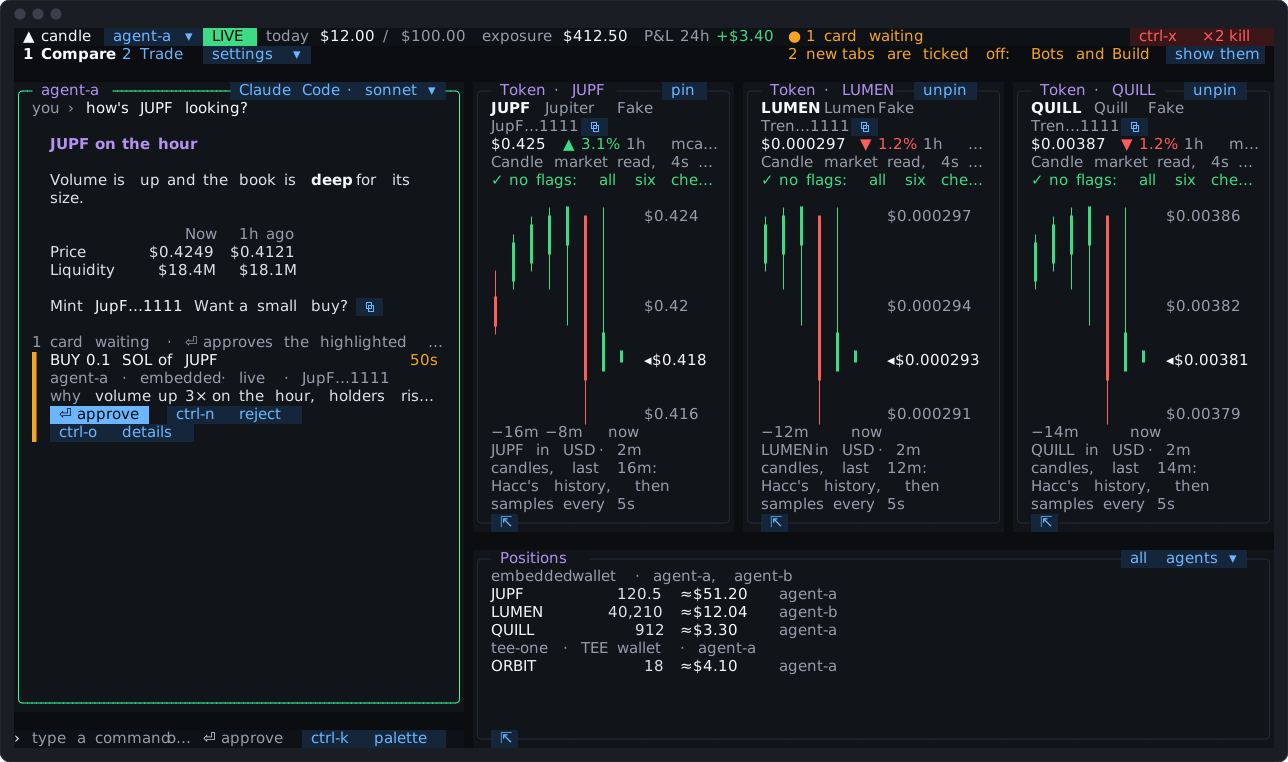
Ask the agent to “compare JUP and BONK side by side” and it lays them out as a preview, kept on a click, with each pinned.
Pop-out
Section titled “Pop-out”Any pane but the conversation can move into a terminal split of its own, attached to the same core: ctrl-p on the pane, its ⇱ chip, or the palette.
- Inside tmux, it opens a split beside the Candle Harness.
- Inside cmux, it opens a cmux split.
- Anywhere else, the Candle Harness shows the command to run,
candle-harness view --pane <pane>, with a copy chip. Paste it into any terminal window.
The popped pane has the kill switch (ctrl-x twice) and shows how many cards are waiting, but it approves nothing: cards stay with the input line in the main window. Close it (ctrl-c twice) and the pane comes back to its tab.
Themes
Section titled “Themes”Three themes come with the Candle Harness:
- Candle dark, the default;
- Candle light: the same colours doing the same jobs, on white;
- Terminal: your terminal’s own background, text and colours. Where one of your colours is too faint to read, the Candle Harness keeps its hue and makes it lighter or darker until it reads. The Candle Harness asks your terminal for its colours; if no answer comes within a second, the theme you had stays, and the Candle Harness says why.
To pick one, open the palette (ctrl-k) and type theme. It draws at once, in every view, popped-out panes included, and the Candle Harness keeps your pick. [theme] name in config.toml is where a fresh install starts.
A theme of your own
Section titled “A theme of your own”Put a .toml file in the themes folder beside config.toml. Its file name is the theme’s name, so themes/Paper.toml is “Paper”. Name only the colours you want to change; the rest come from its base.
base = "Candle light"pane = "#fbfbf8"attention = "#7a4f00"
[reply]code = "#0550ae"
A theme changes shades, never meanings. Amber still means “look at this”, red still means refused or down, and blue is still what you can click. So every theme is checked when it loads: text must have enough contrast to read, chips and the LIVE, PAPER and PAUSED blocks must read, and no two meanings may look alike. A theme that fails isn’t used, and the Candle Harness says why. A colour it can’t read is named with its line and left out. Configuration lists every colour.
The agent changes the view
Section titled “The agent changes the view”Ask the agent, and it changes the view for you:
- “show me the cockpit” switches tabs at once;
- “put Signals under the chart” builds a layout as a preview on its tab: keep or discard on the tab bar decides;
- “a tab for watching the tape” adds a tab, with an undo;
- “only KOL mentions on Signals” filters Signals; “find my last MOON sell” searches the Journal;
- “pin this token”;
- “make me a theme with warmer colours” writes a theme, checks it, and uses it at once, with an undo under its reply.
It never moves your focus or takes your keys while it does this.
settings ▾
Section titled “settings ▾”Everything set up once is under settings ▾, opened by a click or from the palette (ctrl-k, then settings): which tabs show and each tab’s layout, the theme, your agent’s preset, model and memory, your own skill folders, aliases, the P&L window, approvals, triggers, bots and the vault. Every setting in the files is on the Configuration page.